

How to Create a Vendor Bill in Invent ERP?
How to Create a Vendor Bill in Invent ERP?
Managing vendor bills accurately is essential for maintaining clean accounting records and keeping your cash flow under control. Invent ERP makes it easy to record, review, and pay vendor bills while ensuring all financial entries remain accurate and traceable.
Step-by-Step Process
Step 1: Navigate to Vendor Bills
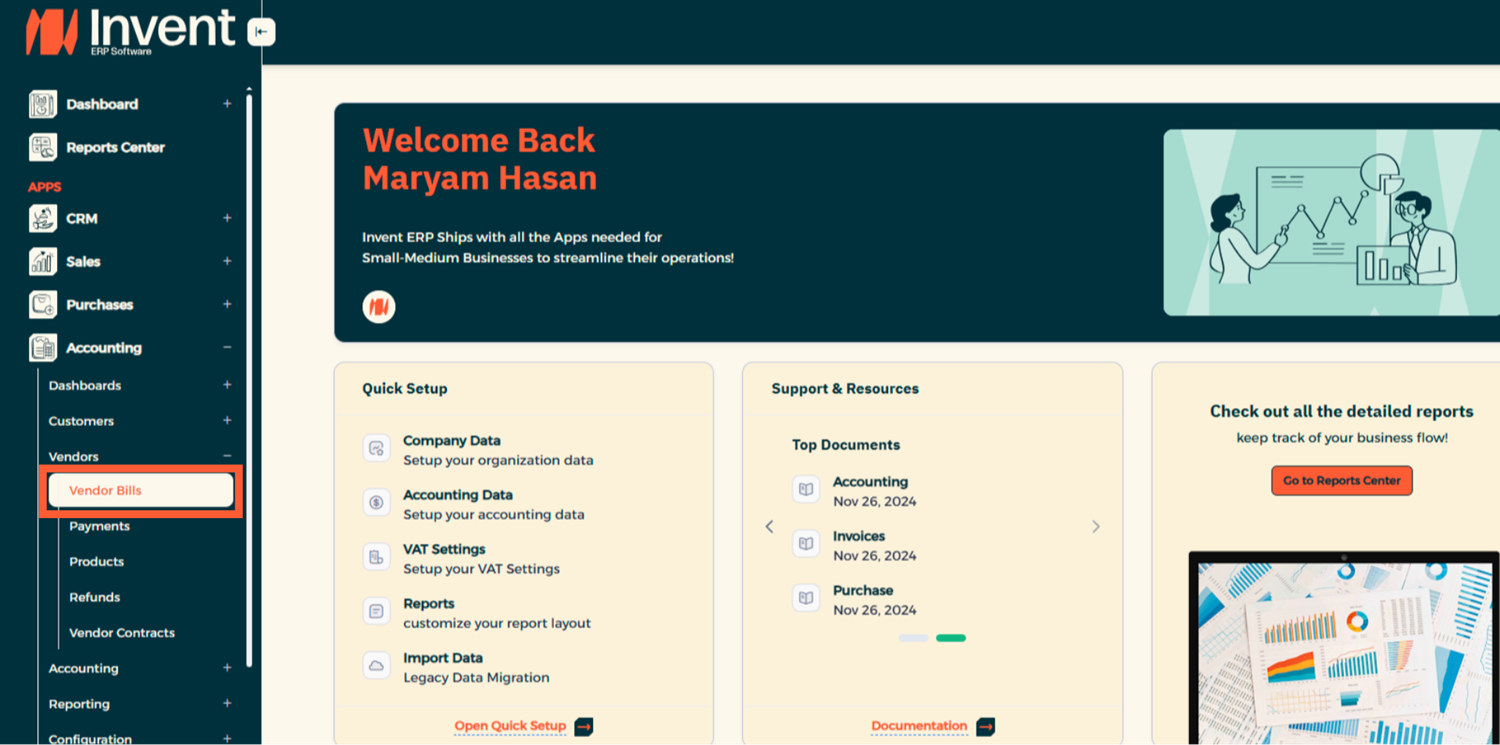
OR
From the Quick Link click on New Bill.
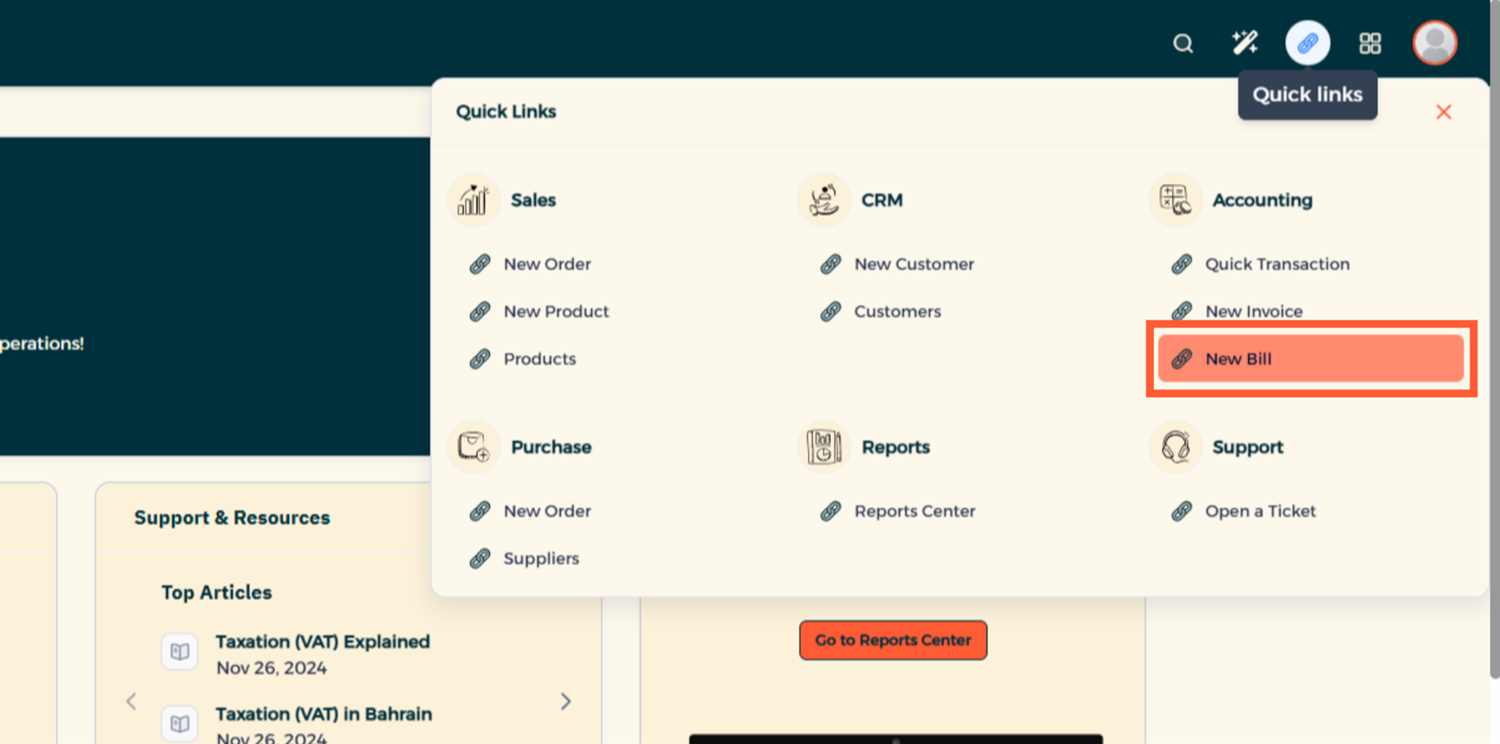
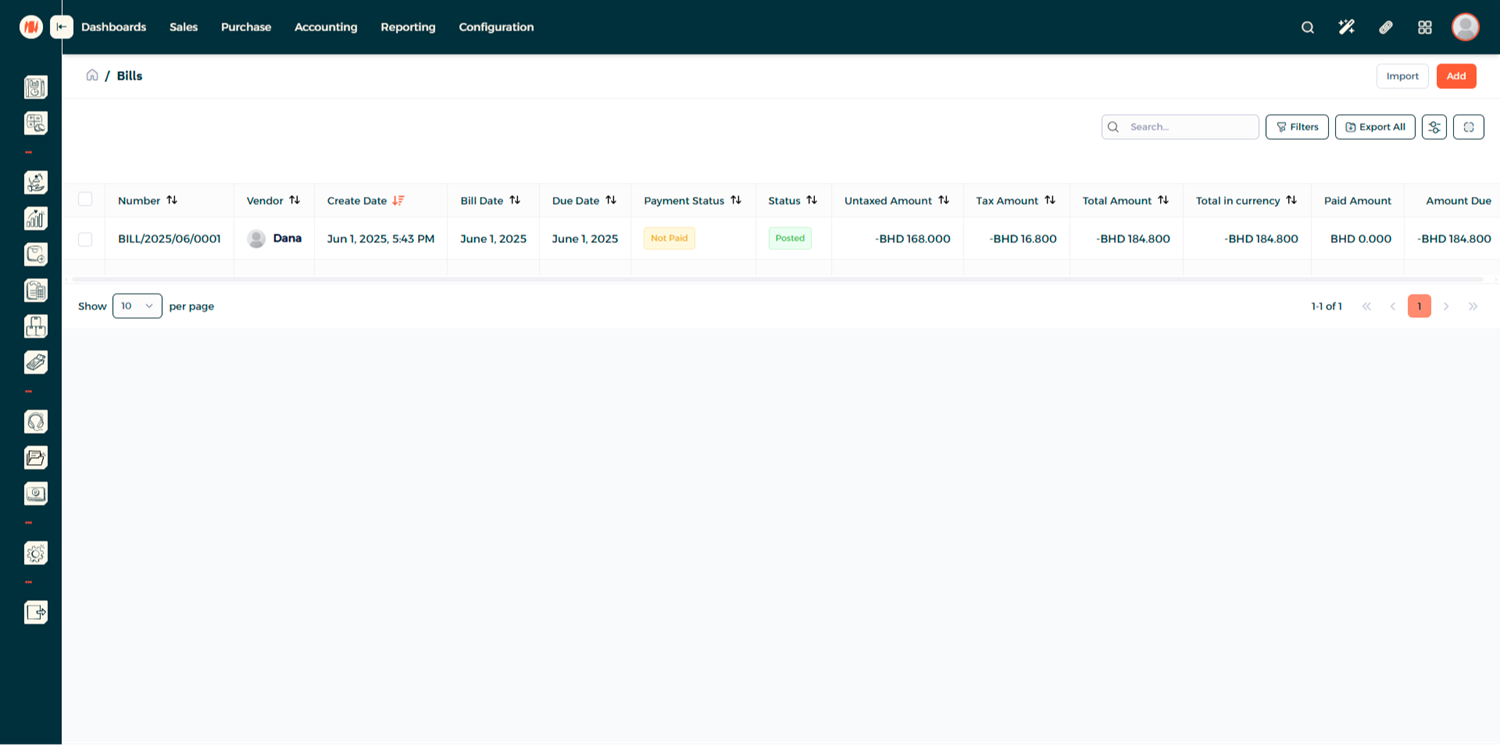
Step 2: Create a New Vendor Bill
Here, you can view all existing vendor bills along with their amounts and current statuses. Click Add to create a New Vendor Bill.
Step 3: Add Details
Start filling the Vendor Bill Information and any Other Internal Information
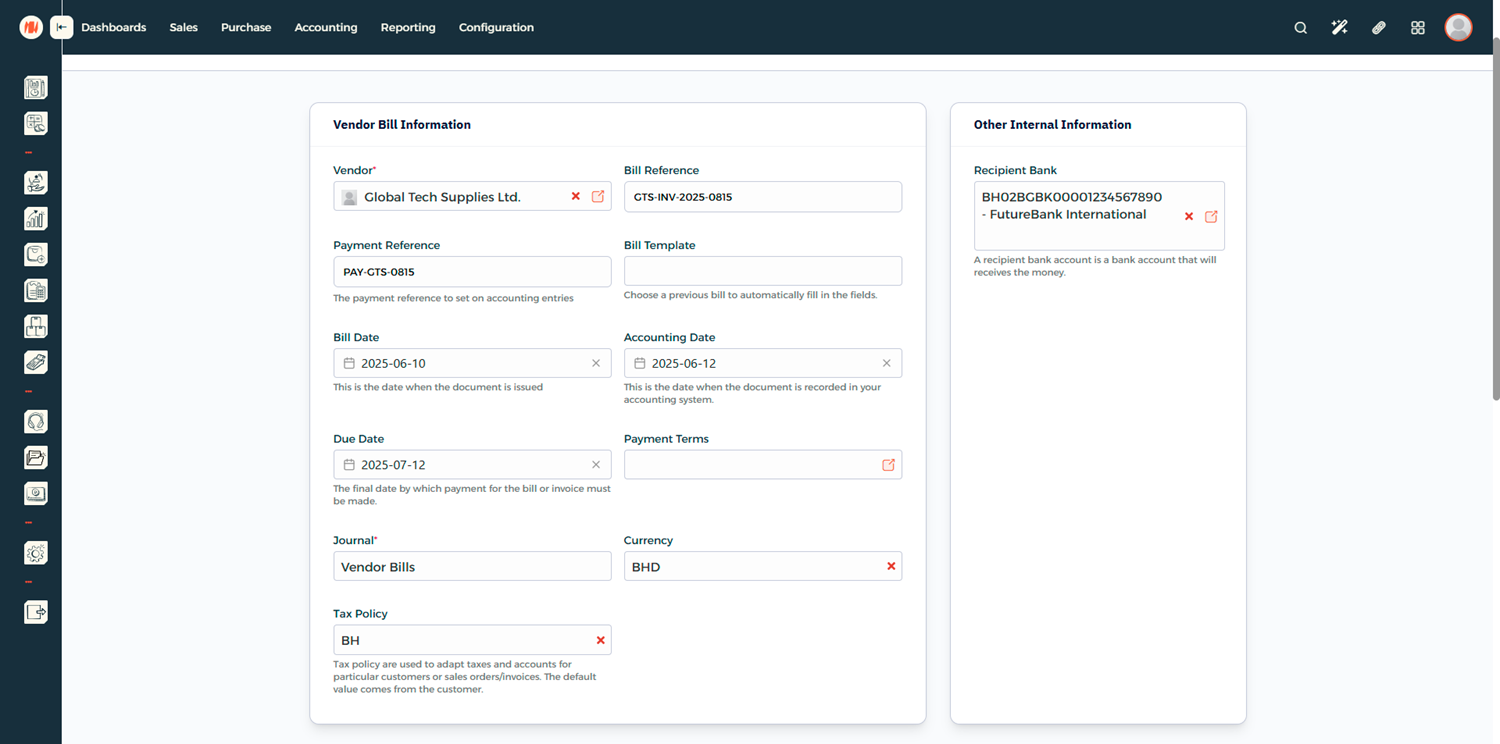
You can use Bill Template to automatically fill commonly used information from previous bills.
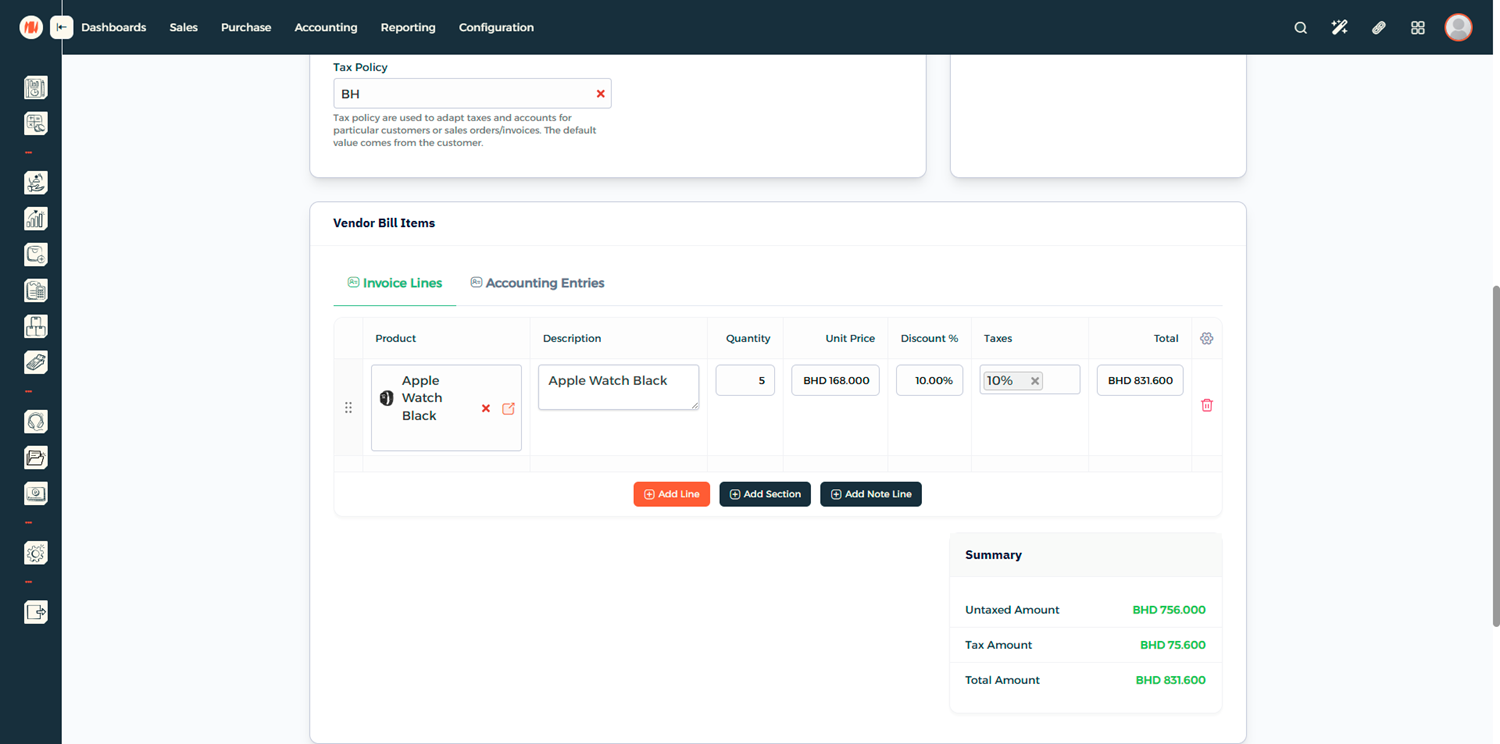
Step 4: Add Vendor Bill Items
Add your Vendor Bill Items where you can add the products and services being billed.
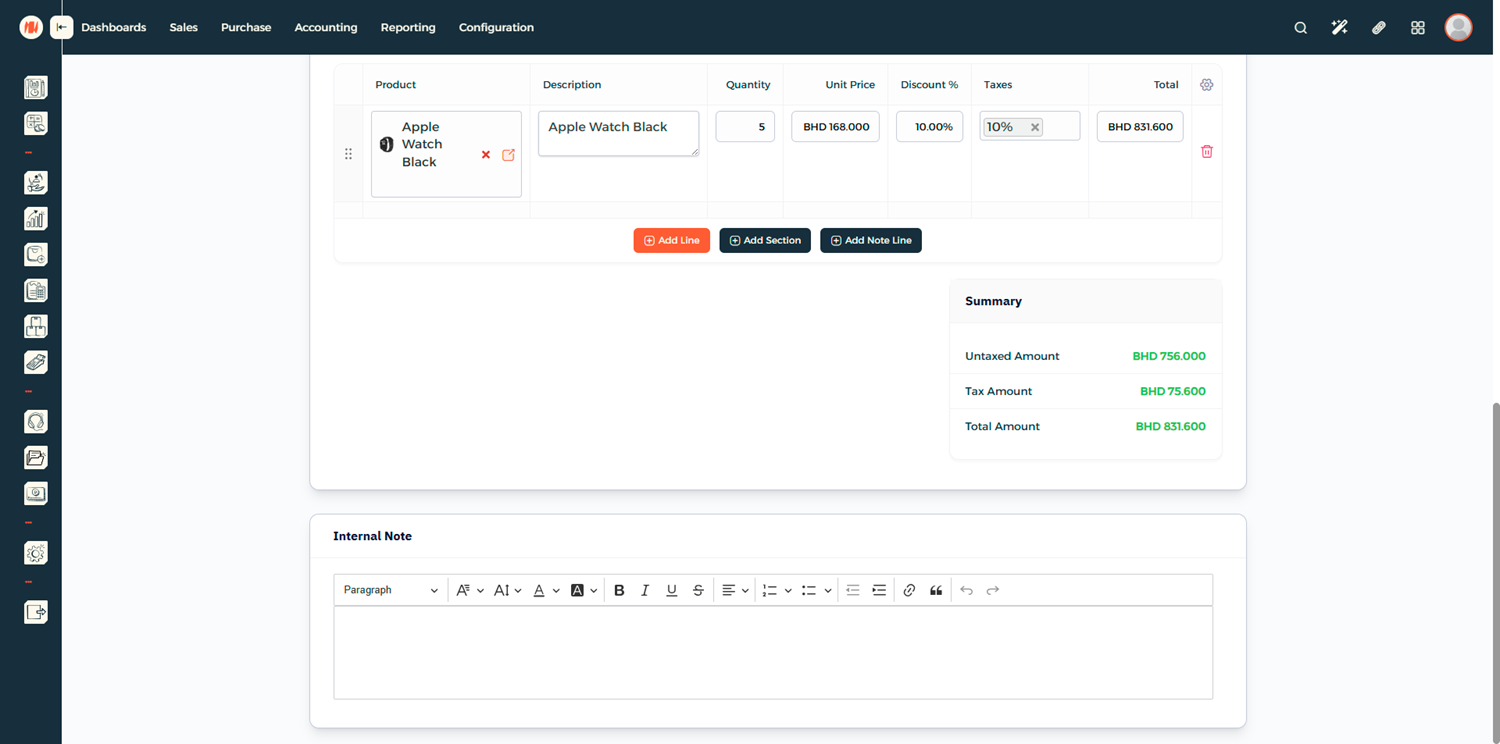
Step 5: Add Internal Note (Optional)
Include any relevant internal notes for reference.
Step 6: Save the Vendor Bill
Once all details are entered and reviewed, click Create to save the bill.
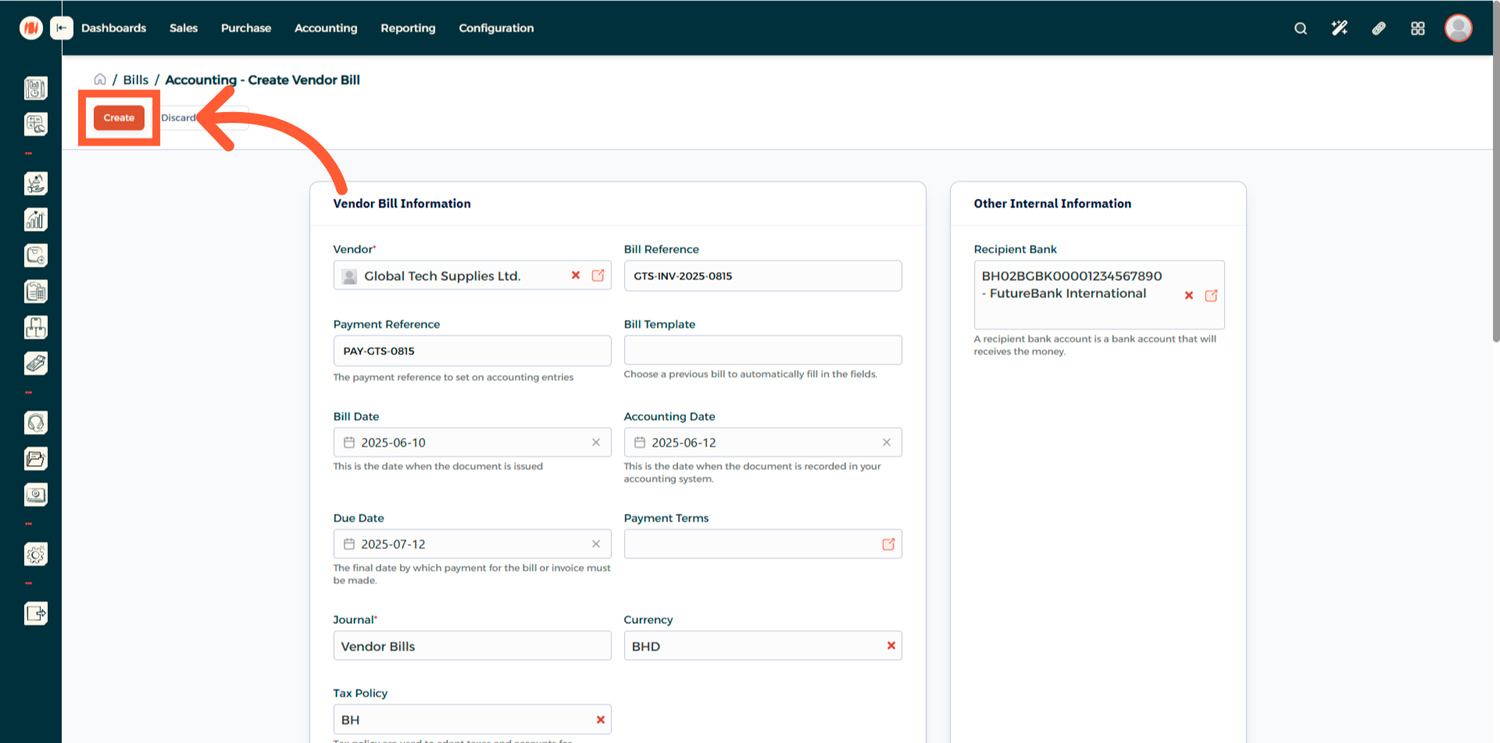
The vendor bill will be saved in Draft status, allowing you to review all details before finalizing.
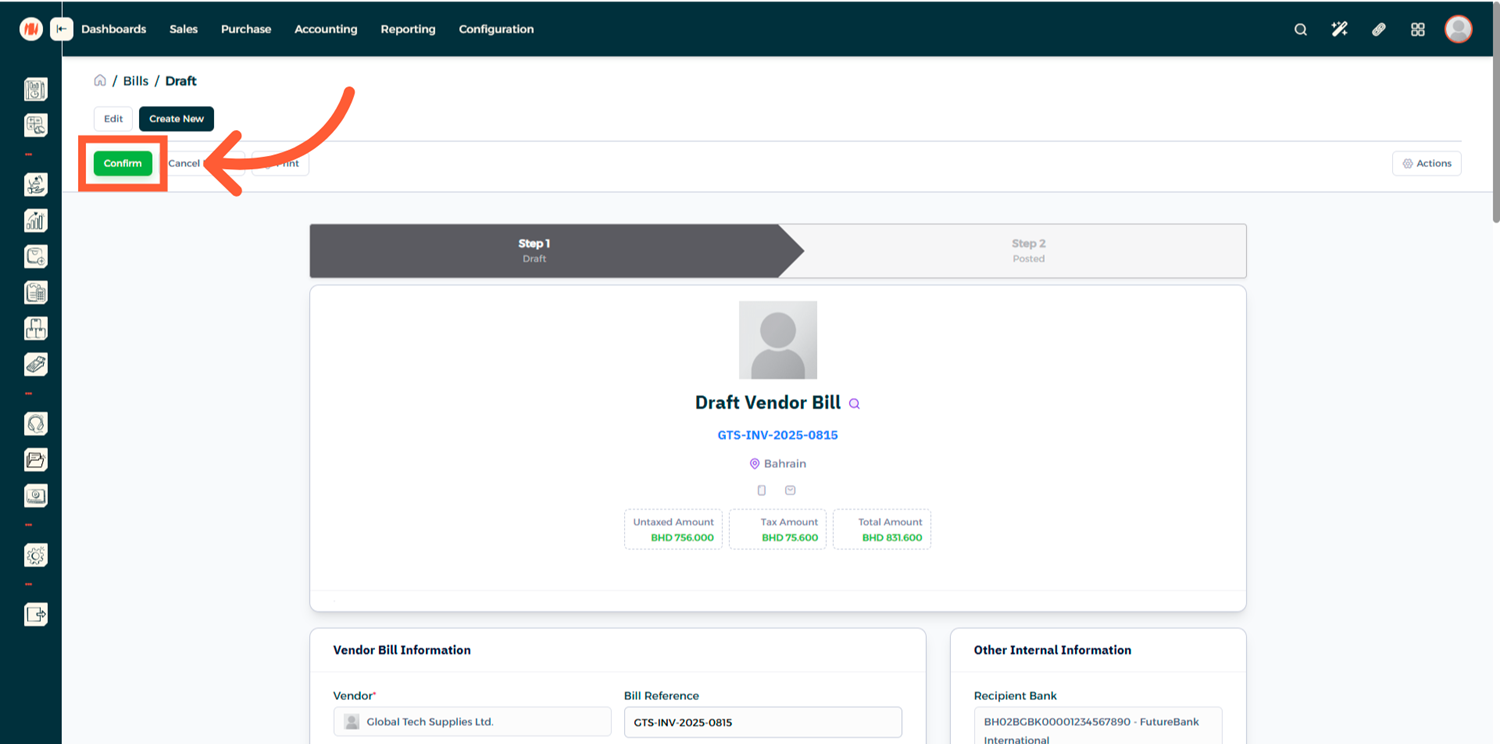
Step 7: Confirm the Vendor Bill
When you're ready, click Confirm to finalize the bill.
Step 8: Register a Payment
To record a payment, click Register Payment and enter the payment details.
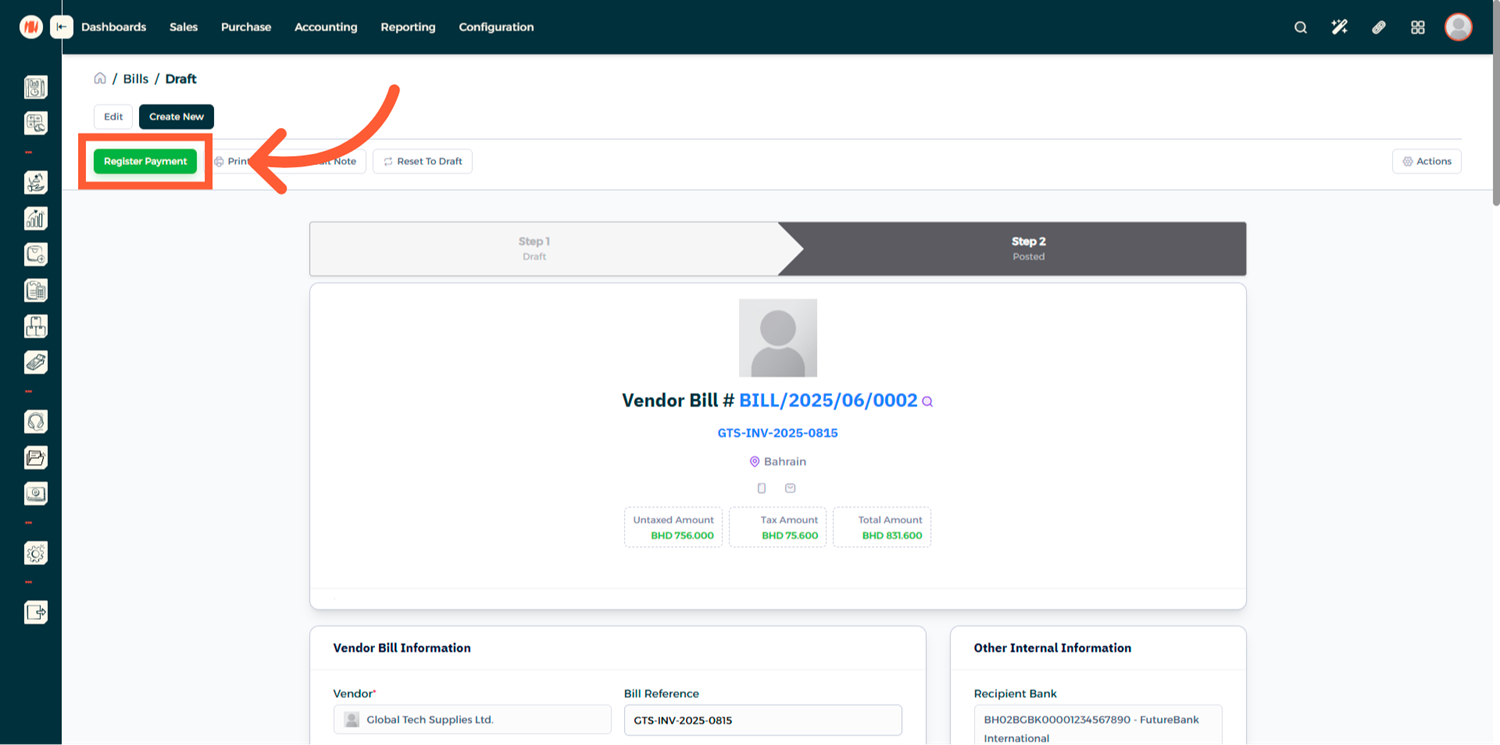
For Partial Payments, simply enter the amount received and the system will automatically calculate the remaining balance and handle any differences.
Notes & Tips
- Always review bills in Draft mode before confirming to avoid errors.
- Using Bill Templates helps standardize vendor billing and saves time.
- Partial payments can be recorded until the bill is fully settled.
Frequently Asked Questions (FAQ)
Q: Can I record partial payments for a vendor bill?
A: Yes, Invent ERP allows partial payments. The remaining balance will stay open until fully paid.
Q: Can I edit a vendor bill after confirming it?
A: You can reset the bill to Draft mode, make changes, and then reconfirm it.
Q: Can I add a credit note to a vendor bill?
A: Yes, credit notes can be issued directly from the vendor bill when needed.
Q: Is it possible to print vendor bills?
A: Yes, once confirmed, you can print vendor bills for record-keeping.