

How to Create and Add Quick Transactions in Invent ERP?
How to Create and Add Quick Transactions in Invent ERP?
Quick Transactions in Invent ERP are designed to save time and simplify accounting entries for recurring for frequently used transactions. By creating reusable templates. you can post transactions instantly with minimal input keeping your financial reports accurate and up to date.
Step-by-Step Process
Step 1: Access Quick Transactions
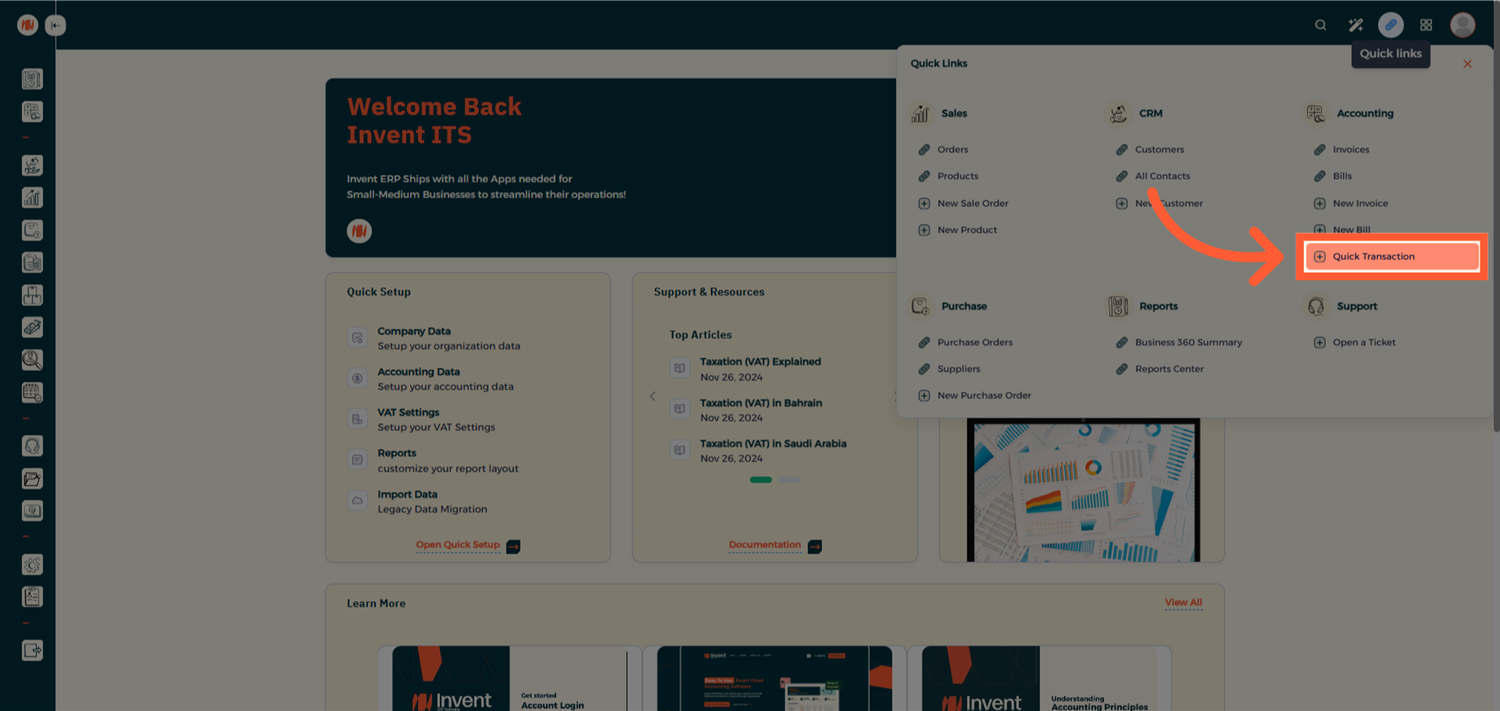
From the Homepage click on Quick Links, then under Accounting select Quick Transactions
Step 2: Create a Quick Transaction Template
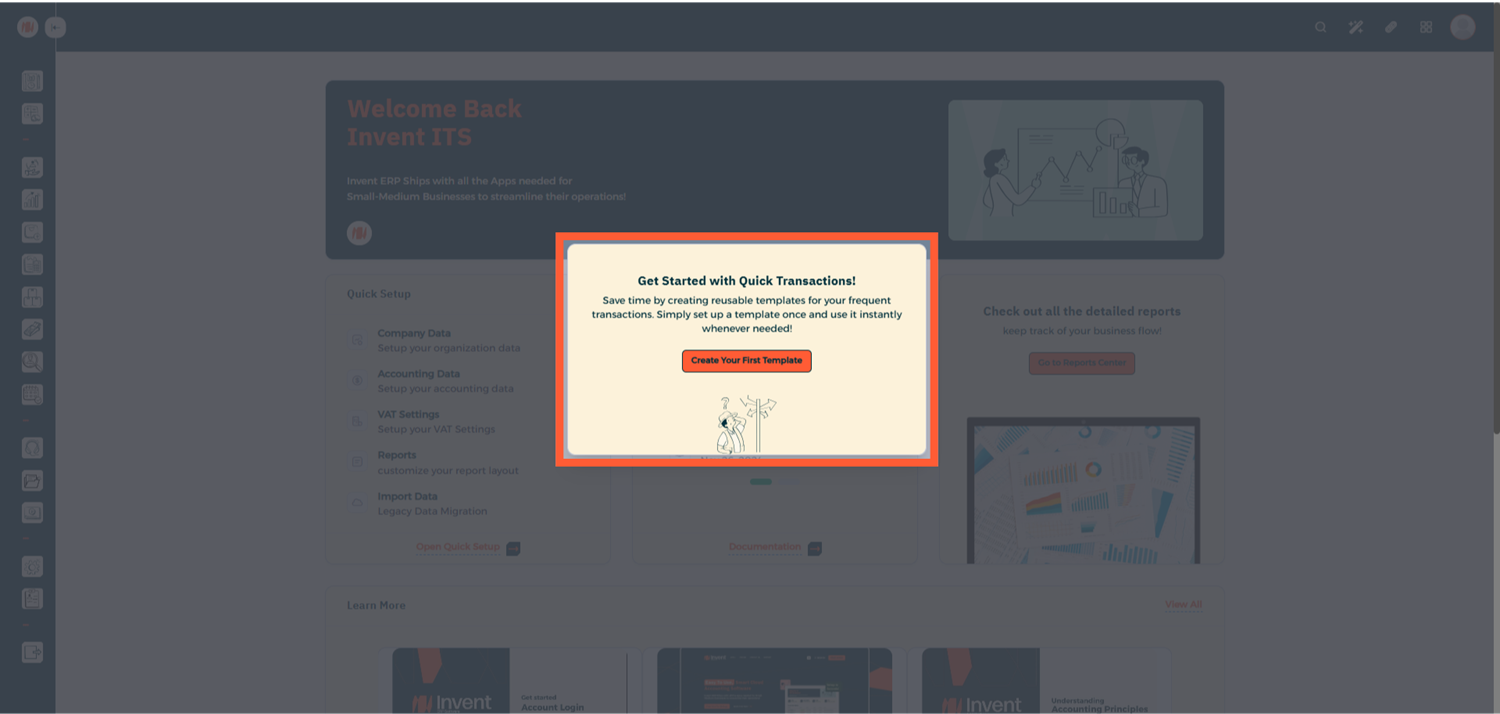
Start by creating a template for transaction
Step 3: Define Template Details
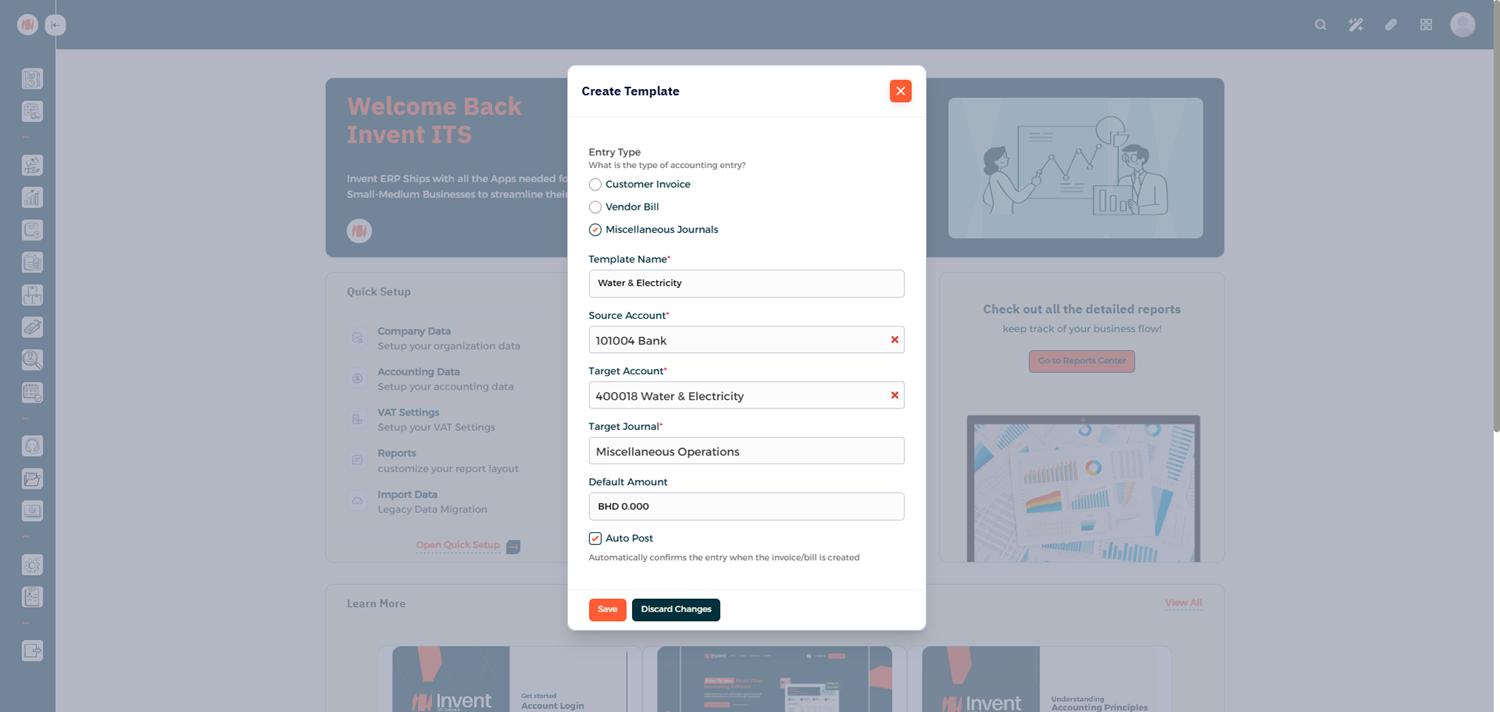
Fill in the template information
Step 4: Create Additional Templates (Optional)
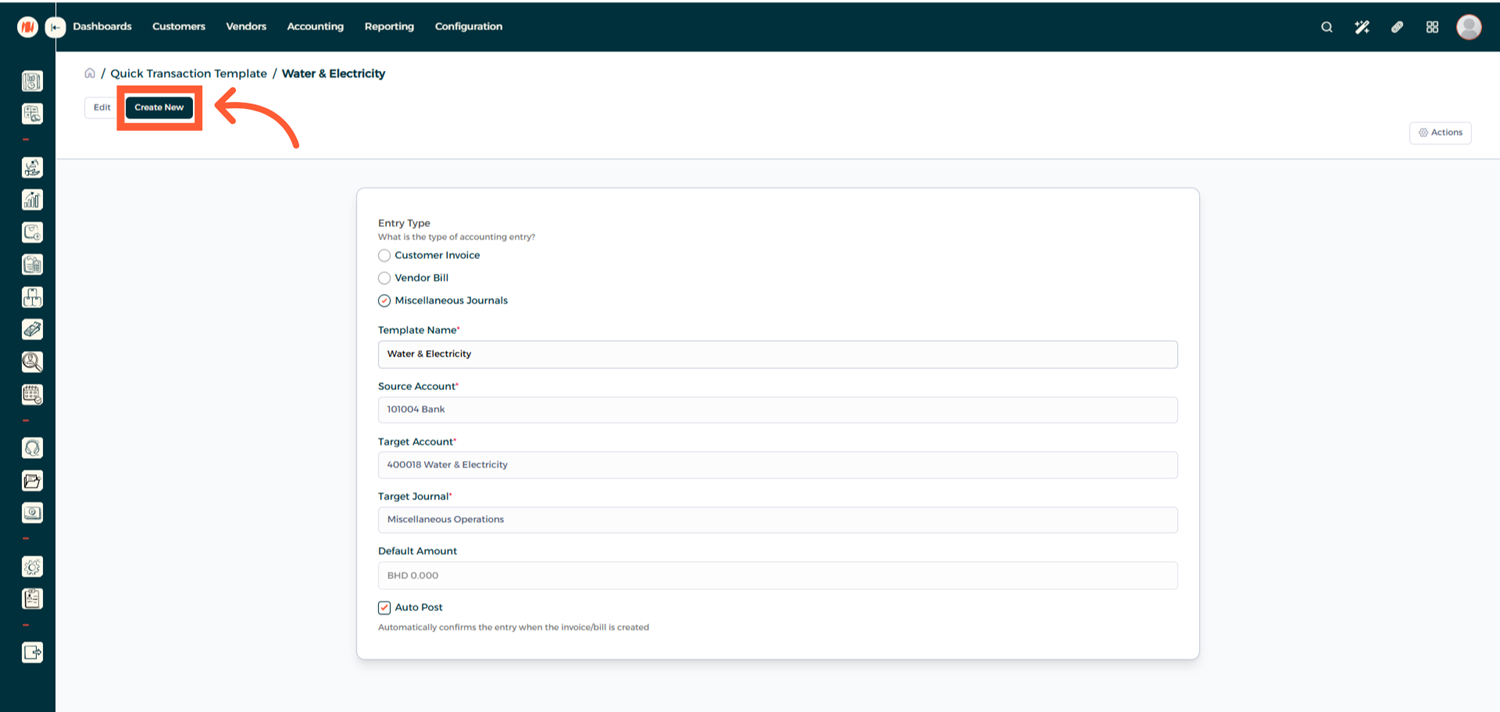
Your template is now saved. If you need more templates, click Create New and repeat the same steps.
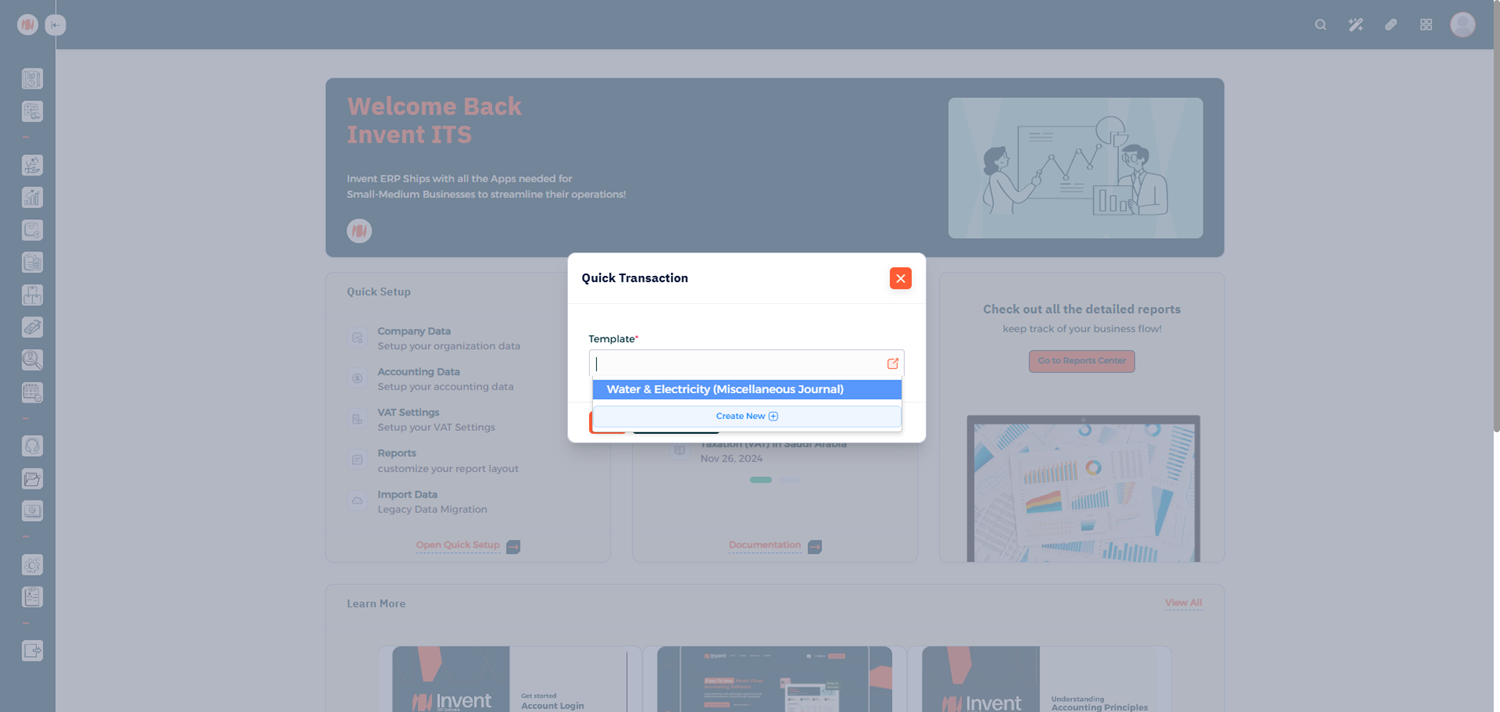
Step 5: Create a Quick Transaction
Now it's time to use the template, repeat the steps from Step 1 and choose your template
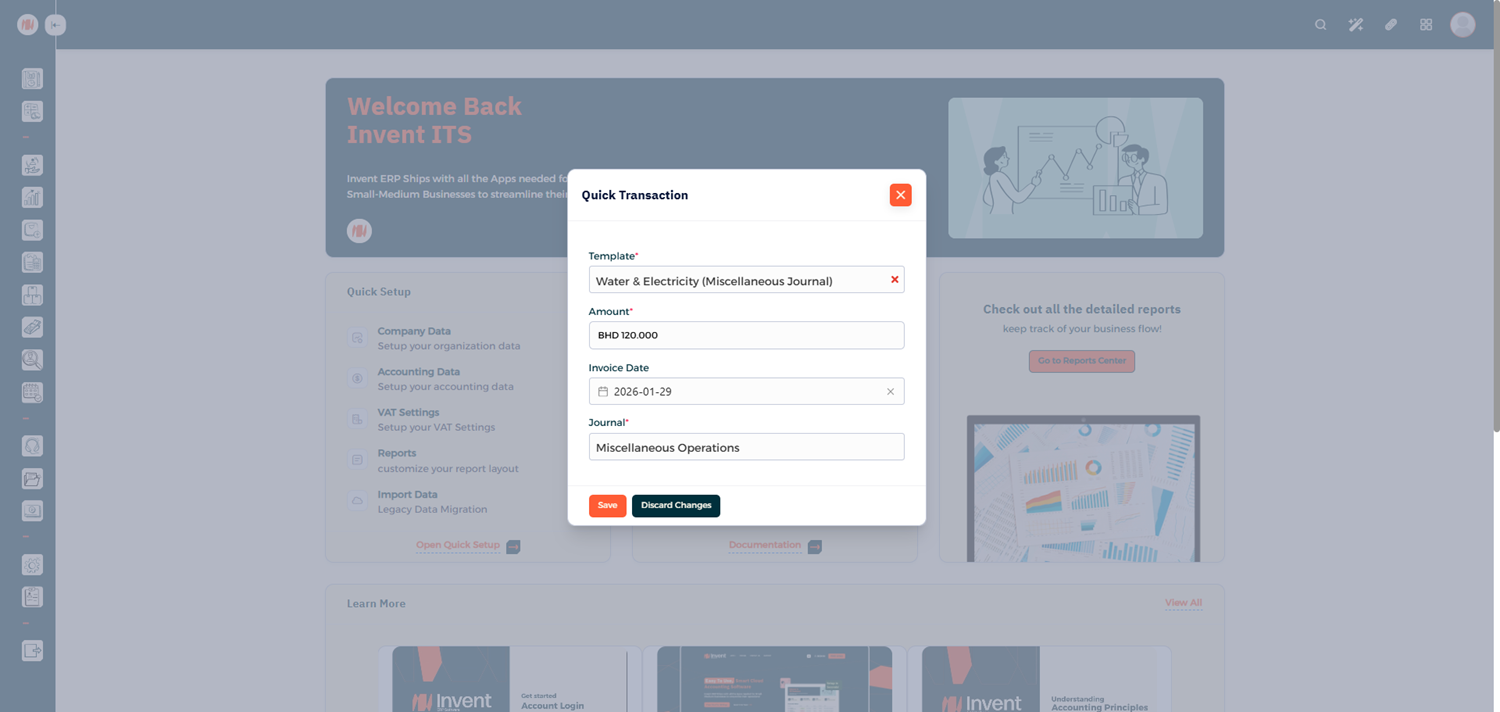
Step 6: Enter Transaction Details
Enter your Transaction Amount and Save
Step 7: Review the Transaction in Reports
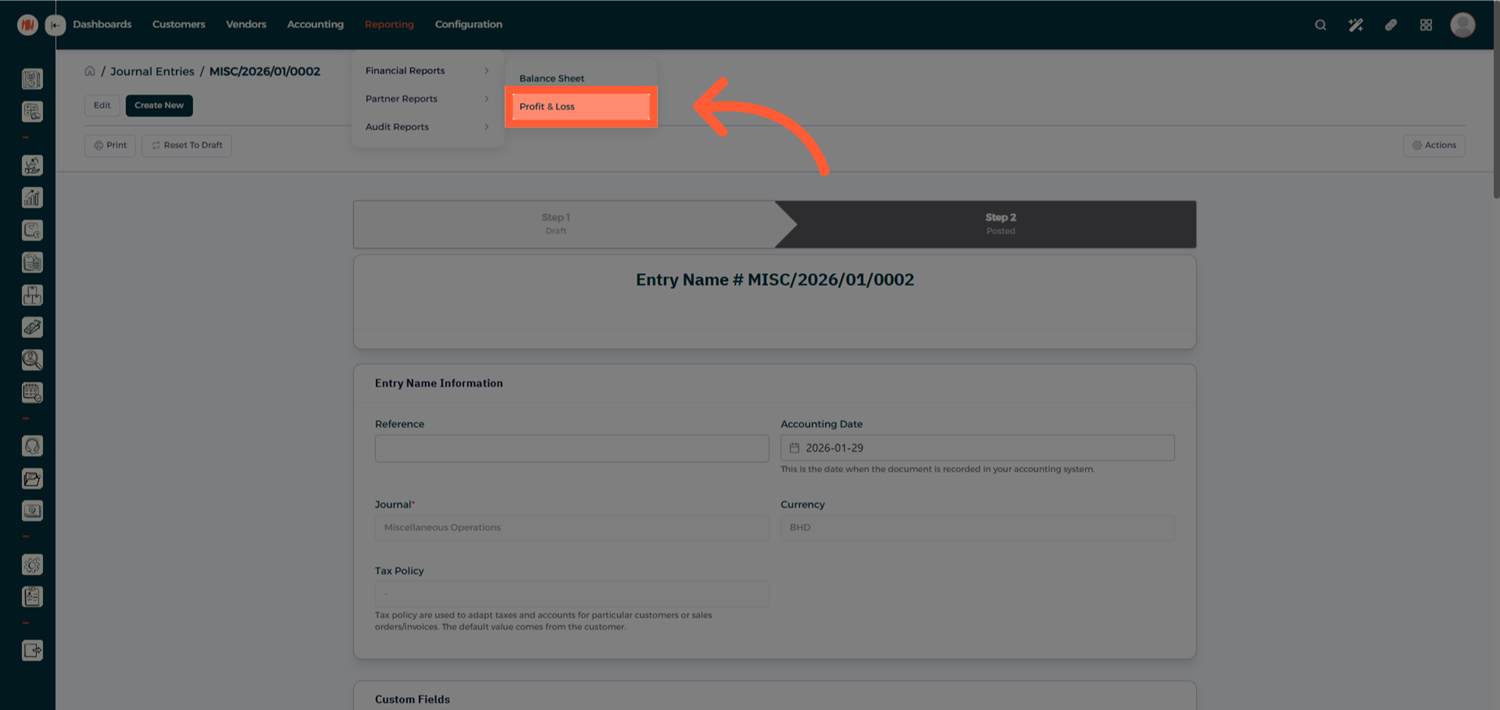
To see how the transaction affects your financials:
- Head to Reporting
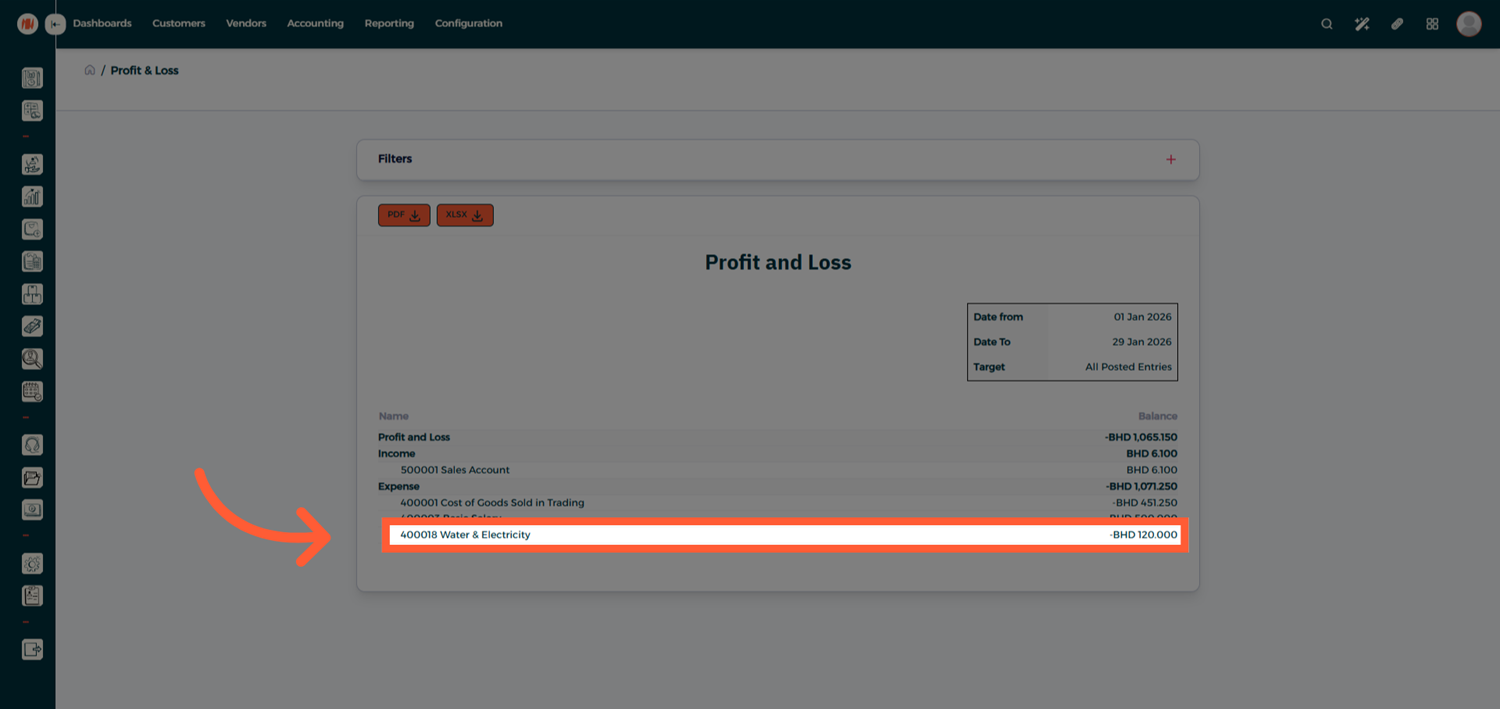
- Open Profit and Loss
- Under Expenses, you'll fine your Quick Transaction reflected instantly
Notes & Tips
- Use Quick Transactions for recurring expenses, internal transfers, or routine accounting entries.
- Setting a default amount helps speed up posting for fixed-value transactions.
- Auto Post is ideal when Quick Transactions are linked to invoices or vendor bills.
Frequently Asked Questions (FAQ)
Q: Can I edit a Quick Transaction template after creating it?
A: Yes, templates can be edited or updated at any time from the Quick Transactions section
Q: Are Quick Transactions reflected immediately in reports?
A: Yes, once posted, they appear instantly in financial reports such as Profit and Loss
Q: Can I create multiple templates for different transaction types?
A: Yes, you can create as many Quick Transaction templates as needed for different accounting scenarios